Connect Sessions
Note
In this document we'll use the terminology of "connections" and "connection id". These terms are replacing "credentials" and "credentials_token", but while different generations of our APIs are still in use, keep in mind that those terms can be used interchangeably.
Connect Sessions help you handle the lifecycle of your connections. You will use Connect Sessions when you need any end user action. You can use them to:
- Create a new connection
- Update the credentials of an existing connection
- Solve a MFA challenge
For each action, we will create a new session. These sessions are unique and non-reusable. Each session have a unique URL where you need to redirect the user to.
This URL will be valid until the session expires or the user finishes the process.
Open the session URL as a top-level navigation: a full-page redirect, a new tab or window,
or the system browser on mobile. Embedding the widget in an iframe is not supported.
Use the redirect_url of the session configuration to bring the user back to your
application when the process is finished.
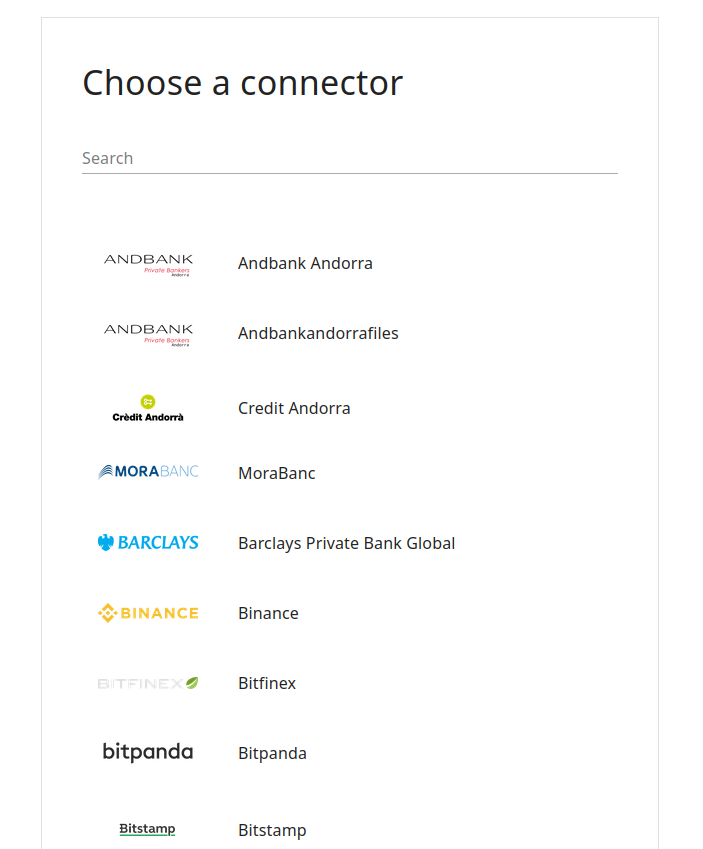
The widget rendered in the URL will look like this:


Sessions Worflow
You can manage sessions' lifecycle using the Connect API.
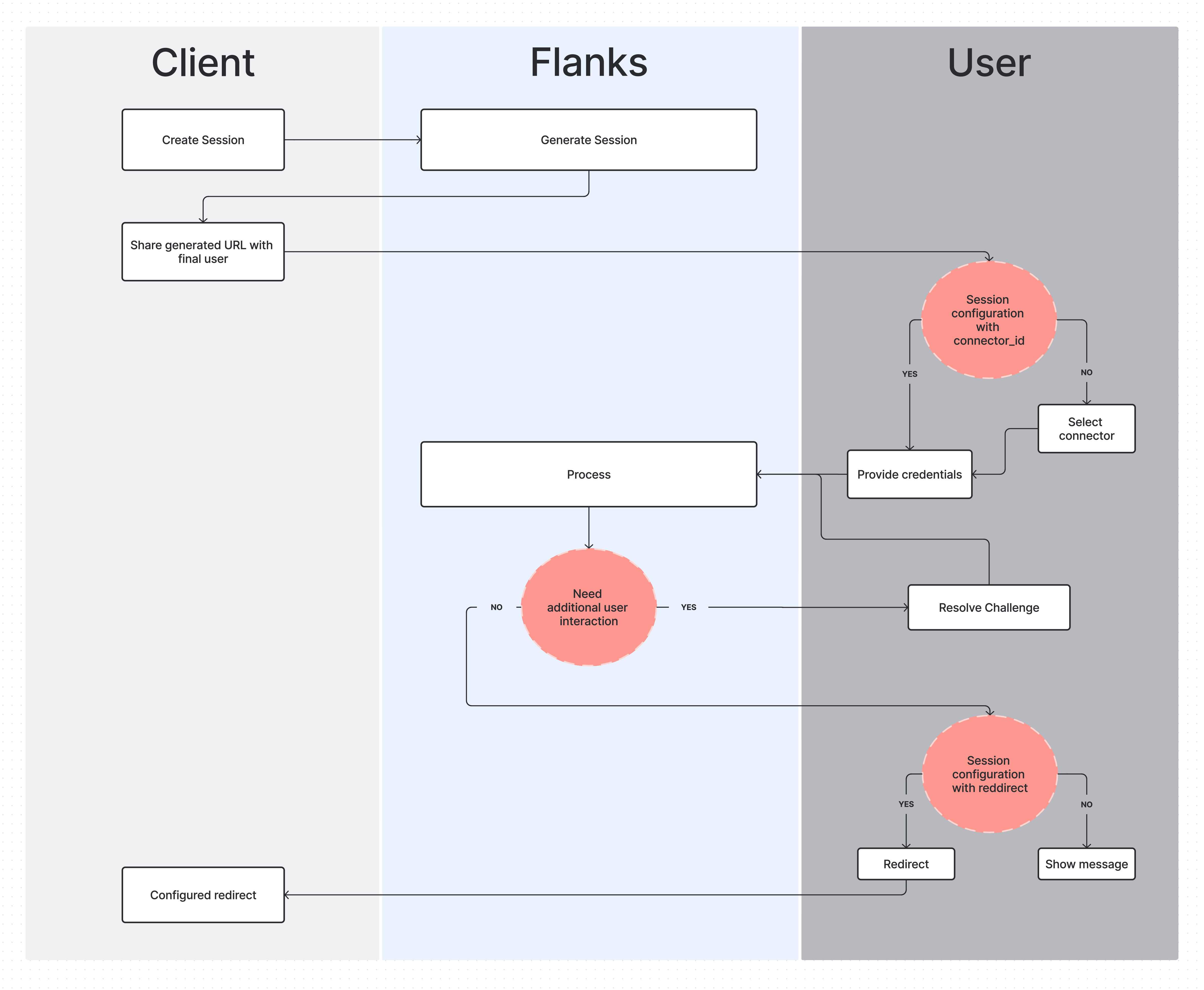
A simplified version of the workflow is:
- You create a session using the Create Session endpoint. This will return a session ID and a URL.
- Redirect your user to the URL provided in the response. The user will go through the Connect Widget flow.
- You can check the status of the session at any time using the List Sessions endpoint.
- When the user finishes the process, successfully or not, we will redirect the user to
the
redirect_urlyou provided in the configuration, with thesession_idparameter in the URL. See Returning to Your Application. - Use that
session_idwith the List Sessions endpoint to check whether the session was successful and a new connection was created.
Returning to Your Application
When the session finishes, the widget redirects the user to the redirect_url of the
session configuration, appending the session id as a query parameter. Query parameters
already present in your redirect_url are kept:
https://your-app.com/callback?session_id=<SESSION_ID>
The user is redirected whether the session finished successfully or with an error, and
the redirect looks the same in both cases: it carries no status or error code. To get the
outcome, fetch the session with the List Sessions
endpoint: attributes.status is Finished:OK or Finished:Error, and a failed session
has its Session Error code in error.code.
If the user leaves the widget before the session finishes, there is no redirect. See Abandoned Sessions.
Session Configuration
You can configure some aspects of the widget the user will interact to. The complete list of configuration options can be found in the Session Configuration Model.
If you set the connection_id option, the session will be used to unblock a
connection. If it's not set, the session will be used to
create a new connection.
If you set the connector_id option, the user will not be able to change the connector
in the widget: they will land on the "provide credentials" screen. If it's not set, the
user will be able to select a connector from a list.
New Connection
To create a new connection, you need to create a session and redirect the user to the URL provided in the response.
Once the user finishes the process, we will redirect the user to the redirect_url
you provided in the configuration. If the process was successful, we will inmediately
dispatch an internal action to fetch all the data for that connection.
Abandoned Sessions
A new connection is not complete until the user solves the challenge the institution asks for (for example, an SCA code). If the user leaves the widget before that, the connection stays half created: it has no data, and it can't be refreshed without the user.
A session is valid until its expires_at, but once the institution asks for a challenge
the user has 1 hour to solve it, whatever expires_at says. Each new challenge gives
another hour. The expires_at returned by the API does not change.
Flanks cleans these up periodically. After a session that creates a new connection runs out of time while it is still waiting for the challenge, Flanks:
- deletes the connection, as long as it has never retrieved any data
- marks the session as
Finished:Errorwith the error codeStaleConnections
Connections that have already retrieved data are never removed by this process. If the user wants to try again, create a new session.
Unblock a Connection
Once created, a connection might need user interaction to keep refreshing its data. For example, a connection might require the user to solve a MFA challenge or the user might have changed their credentials in the website.
In all these scenarios, you can use a session to unblock the connection. You'll have to
provide the connection_id of the connection you want to unblock.
When you redirect the user to the session URL, the widget will ask the user to provide any information required to unblock the connection.
Monitoring Sessions
At any point, you can use the List Sessions endpoint to understand the status of your sessions.
This will be used when a user is redirected to the redirect_url you provided in the
configuration, but you can also use it to check the status of your sessions, finished or not.